FAQ / Help

What are the minimum technical platform requirements?
  • Device: The virtual platform is accessible with any device that can connect to the internet through a browser and the experience is fully responsive to all devices.
  • Optimal experience is via Laptop, computer (Mac or PC) or any large screen devices (Android or iOS) are recommended. If you are using a mobile device, please view the screen in landscape mode.
  • If using an Android device, Apple iPad or iPhone you will need to click on the media play button to begin the presentation. Android and Apple iOS devices do not permit automatic launch of streaming
  • Operating systems: Windows 10, Windows 8.1, Windows 7, Android 4.4, Apple Mac OS X 10.9+, Apple iOS 12+
  • Internet browser: Google Chrome, Firefox 3.6+, iPhone/iPad: Safari/iOS 5.1+, Android Phone/Tablet: OS 2.3 or higher. Chrome or Firefox are recommended for the best experience.
  • Minimum internet connection: 5 Mbps for seamless video playback
  • Minimum screen resolution: 1024 x 768
  • Allow JavaScript and Cookies
  • Disable pop-up blockers, ad blockers or VPN for the Virtual conference platform URL
  • Firewalls: Use without a VPN is possible, if in line with the legal conditions of your country, but content is accessible without a VPN by default. We encourage you to disconnect from this when watching or interacting with the platform during the event days. GUT 2020 is not responsible for the default restrictions of your institute or company internet provider, network or state.
  • Clear your cookies and cache: If you experience any issues accessing the platform we suggest you clear your cookies and cache following the instructions found here.
Internet connection requirements:

You may view the virtual experience on a slower connection, however, some users may experience load times that are longer than normal with larger content items. We recommend:

  • A strong Wi-Fi connection or hardwired internet connection of at least 5 Mbps
  • Disconnect from VPN or corporate networks (if possible)
  • Disable ad blocker or pop-up blocker
  • Close any unnecessary applications
  • Refrain from browsing the internet, streaming media and/or downloading large files during this time
I am having trouble with my display, I can’t see anything on the platform.

The recommended resolution for your display is at least a 1024x768 or higher resolution. Please ensure that your browser zoom level is set correctly so you can see everything. In most browsers you can use Ctrl+0 to reset your zoom level or Ctrl + [scroll in or out with your mouse or keypad]. This option can also be found in the tools or view menu.

If you are using a tablet, please view in a landscape mode.

I am having trouble with audio.

There are many things you can check:

  • If you have internal speakers, make sure they are not muted
  • If you have external speakers, make sure they are powered on and are not muted
  • Make sure you have not lost internet connectivity
  • Run a System Check on the prerequisites aforementioned
Where can I see the scientific programme in detail?
  • When logged into the platform click on ‘Lecture’ on the navigation bar at the bottom of the screen.
What are the live broadcast times of the conference sessions?

Sessions are broadcast live between Thursday 26 November to Sunday 29 November:

  • Thursday 26 Nov: 08:00 AM – 17:00 PM
  • Friday 27 Nov: 08:00 AM – 17:00 PM
  • Saturday 28 Nov: 08:00 AM – 18:00 PM
  • Sunday 29 Nov: 08:00 AM – 13:00 PM
Is the programme translated?

Unfortunately, translation service is not available.

How do I access the live broadcast sessions during the conference?
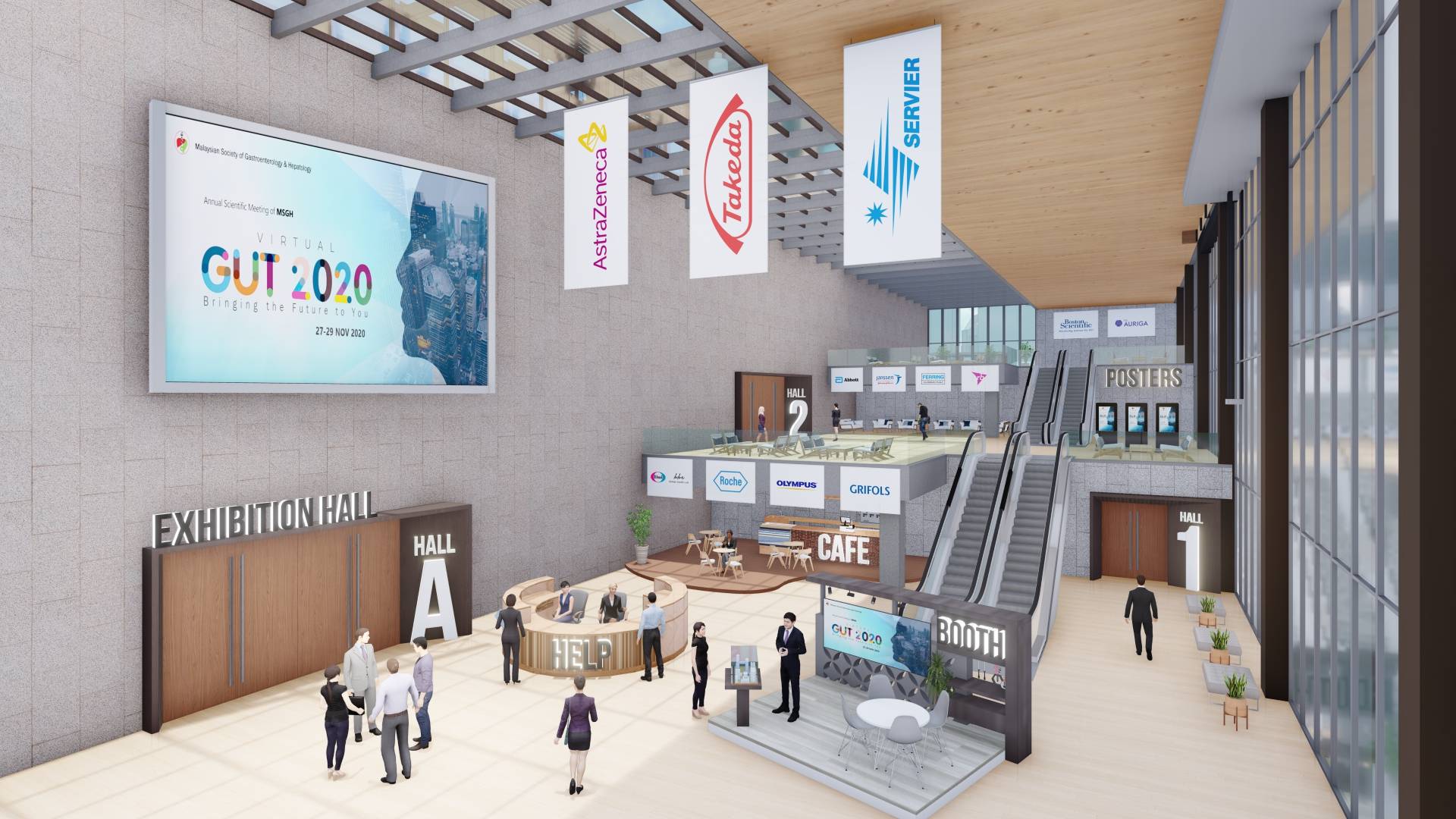
  • If you are in the conference Lobby, select the Hall (Hall 1 or Hall 2) you prefer. 
  • Alternatively, you may click on the 'LIVE' button on the bottom of the screen.
  • Delegates attending live sessions will be able to ask questions via Slido on the right of your screen.
  • Before posting a question, you may opt to whether display your name or anonymously. 
Can I get copies of the speaker presentations and slides? /How long can I access the content On Demand?

All presentations are available to view On Demand on the virtual conference platform until Thursday 25 February 2021, 23:59 PM (GMT+8). After this date MSGH reserves the right to archive On Demand content as appropriate. Copies of the slides are only available if consent has been given by the authors/presenters.

How do I see the conference abstracts?

Conference abstracts are available on the virtual platform ‘Abstracts’ from the navigation bar at the bottom.

How do I access the virtual posters?

Access to posters is via the “Poster” area in the Virtual Lobby. 

I missed a session, how do I access this On Demand?
  • All sessions are recorded.
  • Within a week after the conference, “On-Demand Videos” will be made available on the platform.
Are there CPD points for the event and where can I get my certificate of attendance?

This conference has been accredited with 20 CPD points as per the MMC CPD Grading system.   

This Primary Care Symposium has been accredited with 8 CPD points as per the MMC CPD Grading system.   

Nurses' CPD points

  • Pre-conference Workshops (26 November 2020): 6 points
  • Virtual GUT conference (27 - 29 November 2020): 20 points

Following the conference, you will receive an email link to a survey form, at the same email address you used to register for the conference. The information on claiming the CPD points will be given in the survey form as well.  On completion of this evaluation form, you will be redirected to your e-certificate of attendance, which you may download. 

 
How do I access the exhibition?

Meet our exhibitors by clicking on ‘Exhibition Hall’ located in the conference Lobby. Wherever you are on the platform you can access the exhibition using the 'Sponsors' icon on the navigation bar at the bottom of screen.

How do I find out about sponsor and exhibitor activities?

To view the programme, click the ‘Lecture’ on the navigation bar at the bottom of your screen. You may find the sponsored symposia/ lectures in the programme.

In order to entitled for the lucky draw, please visit and interact with all the exhibitor booth. 

What can I do at an exhibitor booth?
  • Click on a booth to view their content including, videos, documents and other materials.
  • Chat with exhibitors and share contact information.
  • You can video-chat with the exhibitors.
How can I share my contact details with exhibitors I visit?

When you visit a booth, you may instant message the exhibitor. Instant messages between you and an exhibitor are saved by the exhibitor.

Video chats cannot be recorded and are not stored.

How can I talk to an exhibitor?

There are various ways you can talk to exhibitors via the platform: one-to-one online chat, or video chat. This can only be activated at the appropriate exhibitor booth.

One-to-one online chat: To send a one-to-one online chat message, click on the message icon to start a chat.

Video chat: To begin a video chat, click the ‘video call’ button available in the booth. The call will begin once the exhibitor has answered the call.

Remember to take yourself off mute by pressing the microphone button to the left of the video call window.

If the video chat room is pre-occupied and your meeting request is rejected by the exhibitor, please leave the exhibitor a meesage at the text chat so they will be able to contact you.

How can I share my contact details with exhibitors I visit?

When you visit an exhibitor stand you may instant message the person.

  • Instant messages between you and an exhibitor are saved by the exhibitor.
  • Video chats cannot be recorded and are not stored.
How can I talk to MSGH about membership or other activities?

Visit the MSGH Booth stand in the Lobby from 27 November 2020 to find out about MSGH activities and chat with a member of our staff team. Alternatively, visit our website.

What personal data is visible on the Virtual Conference platform?

Only your full name is made visible while you access the virtual platform.

Throughout the platform you will find multiple opportunities to ask for help, to send questions during sessions. In all instances only the name is shown.

How has my data been used, giving me access to the Virtual Conference platform?

MSGH supplier (conference registration management and virtual platform) have established a single sign-in-experience for delegates. For ease of use delegates can use their registration profile login and password to access the Virtual Conference. MSGH remains the data controller.

My question has not been answered in these FAQs, I need more help.

Click on the ‘Chat’ located at the bottom of this page. During the live conference days (times advertised above), the staff will be available to assist you via the help chat function.